
Connect ChatGPT Desktop
Add Celoxis as a custom MCP server
You only need:
- The Celoxis MCP URL
- Your access token
You do not need Developer mode, Node.js, or environment variables.
- Add the Celoxis MCP server
- Open ChatGPT Desktop.
- Open Settings.
- Navigate to Integrations → Plugins.
- Open the MCPs tab.
- Click Add → Add MCP Server.
The form title should be Connect to a Custom MCP.
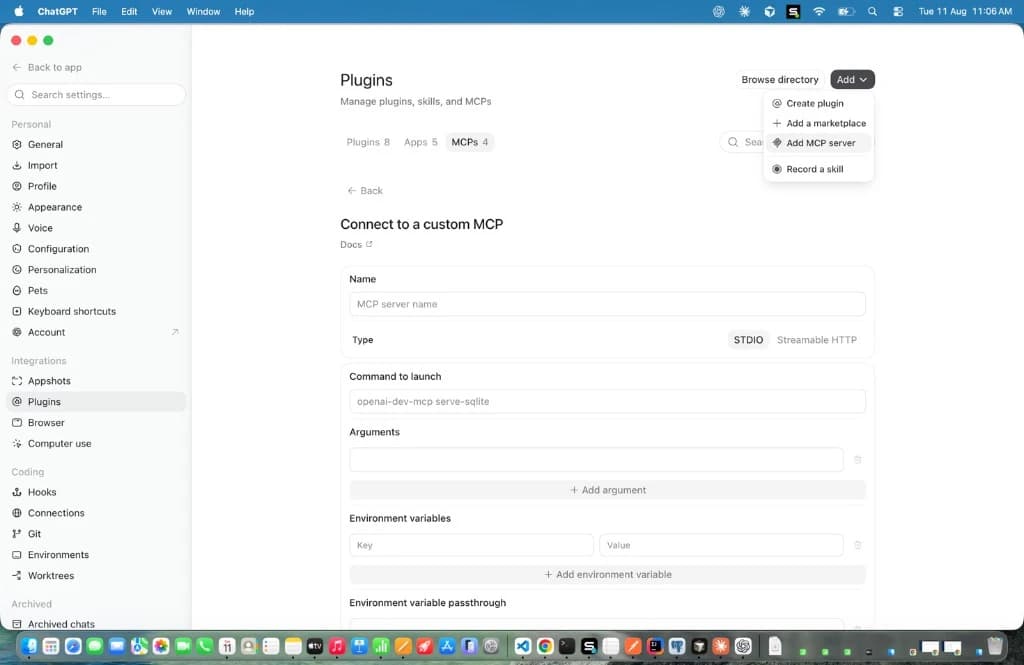
The form opens with Type set to STDIO. That is not the Celoxis path. Do not keep STDIO selected. Celoxis MCP is a remote HTTPS server.
- Configure the connection
Field Value Name Celoxis MCP Type Streamable HTTP URL Your Celoxis MCP URL Header Key AuthorizationHeader Value <access-token>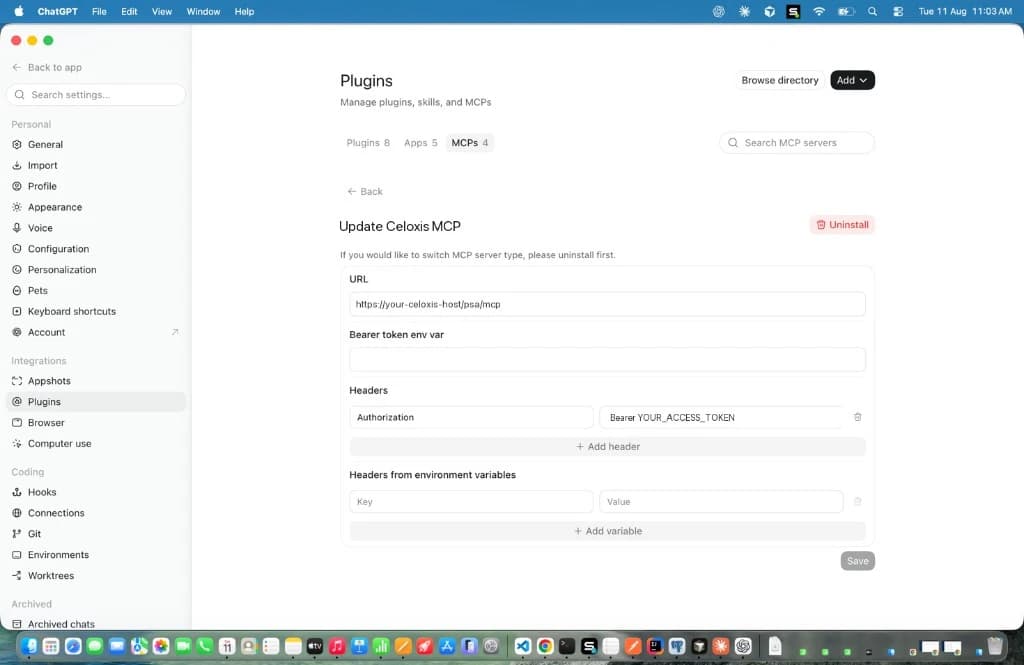
Important:
- Do not keep STDIO selected
- Leave Bearer token env var empty
- Leave Headers from environment variables empty
- Ensure there is exactly one space after
Bearer
Click Save.
- Verify the connection
- Completely close ChatGPT Desktop.
- Reopen the application.
- Start a new conversation.
- Ask: Who am I in Celoxis?
The returned user should match the owner of the access token. If it doesn't, you are probably using the wrong token.
See also Test the Integration and Troubleshooting.