
Connect Claude Desktop
Add Celoxis MCP via Edit Config
You need:
- de votre Celoxis MCP
- Votre jeton d'accès
- Node.js (required for the
npxcommand)
- Install Node.js
If Node.js is not already installed, install it before continuing.
- Open the configuration file
- Open Claude Desktop.
- Open Settings.
- Navigate to Desktop App → Developer.
- Click Edit Config.
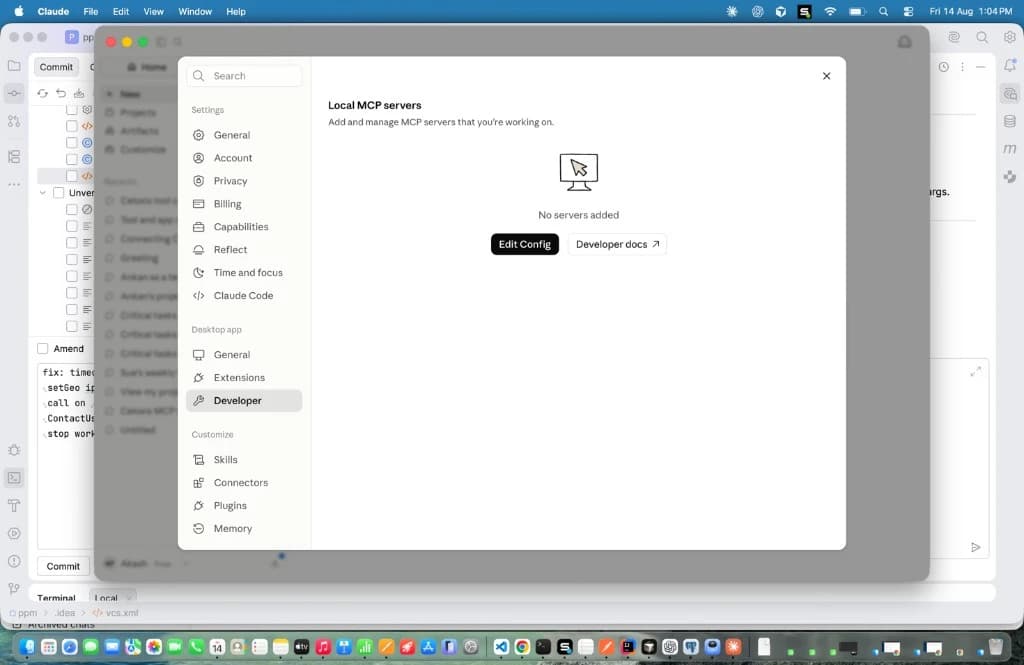
Emplacements des fichiers de configuration :
Système d'exploitation Chemin macOS ~/Library/Application Support/Claude/claude_desktop_config.jsonWindows %APPDATA%\Claude\claude_desktop_config.json - Add the MCP configuration
{ "mcpServers": { "Celoxis MCP": { "command": "npx", "args": [ "-y", "mcp-remote", "https://hostname.domain.com/psa/mcp", "--header", "Authorization: Bearer <Your-Token>" ] } } }Remplacez l'URL et le jeton par vos propres valeurs. Important :
- Laissez un espace après
Bearer - Assurez-vous que le JSON est valide
- Do not leave trailing commas
Enregistrez le fichier.
- Laissez un espace après
- Vérifiez la connexion
- Completely close Claude Desktop.
- Reopen the application.
- Open Settings → Developer.
- Verify that Celoxis MCP appears with the status Running.
- Entamez une nouvelle conversation.
- Question : Qui suis-je chez Celoxis ?
Voir aussi Test de l'intégration et dépannage.