
Jira Integration using Zapier
In many organizations, Jira is still the key software for developers, while project managers and PMO want to use a project management software and still have visibility into resource workloads.
With this integration, you will be able to automatically create tasks in Celoxis when issues are created in Jira. Also, when issues are updated in Jira, the corresponding tasks in Celoxis will be automatically updated.
Zapier
Celoxis integrates with Jira and many other apps using Zapier. Zapier is a cloud-based service that allows you to build powerful integrations between different systems without writing code. For more information, visit their website: zapier.com.
Zap
An automation in Zapier is called a zap. A zap connections two apps - a trigger app and an action app. The trigger app notifies the zap about an event and the zap then performs an action in the action app. In our case, the trigger app is Jira because it will notify our zap when an issue is created or updated. The action app, in our case, is Celoxis because that is where our zap will create and update tasks. In this guide, we will be building two zaps:
- Zap #1 — when an issue is created in Jira, create a task in Celoxis.
- Zap #2 — when an issue is updated in jira, update the corresponding task in Celoxis.
Let's see how Jira, Zapier and Celoxis all fit together:
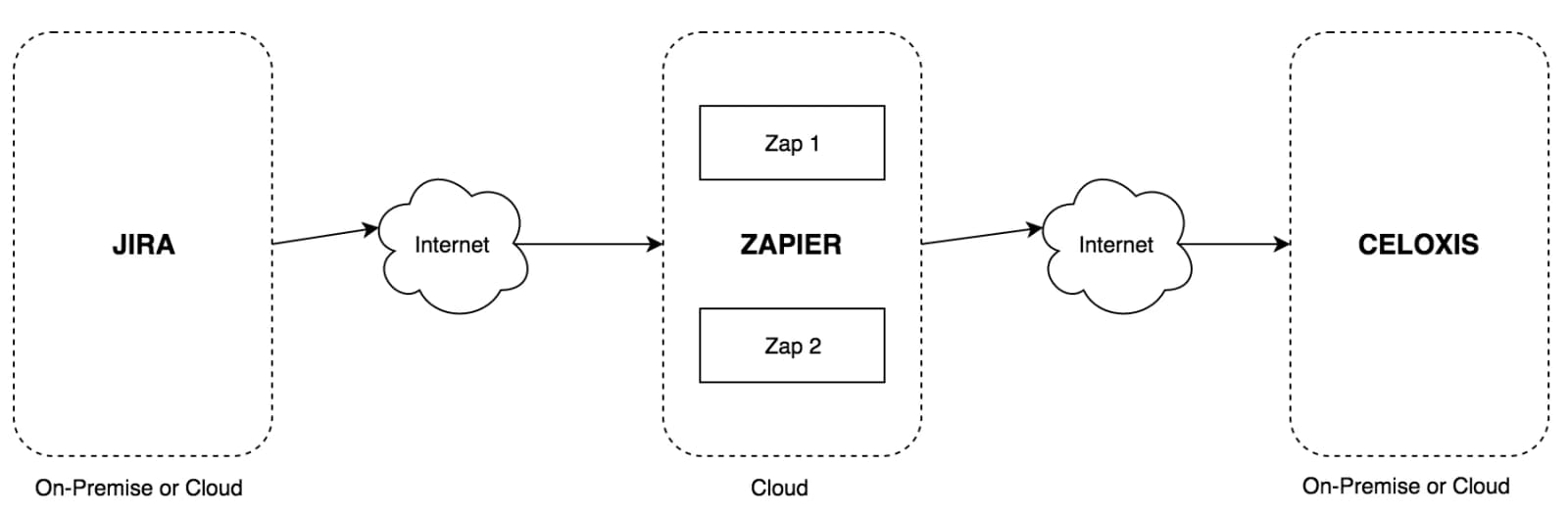
From the above diagram, you can see that Jira and Celoxis can even be on our intranet provided they have access from the internet. It may be possible to configure internet access only from Zapier.
Zap #1 – New issue in Jira → Create task in Celoxis
- Make a Zap

- Choose Jira as the Trigger App
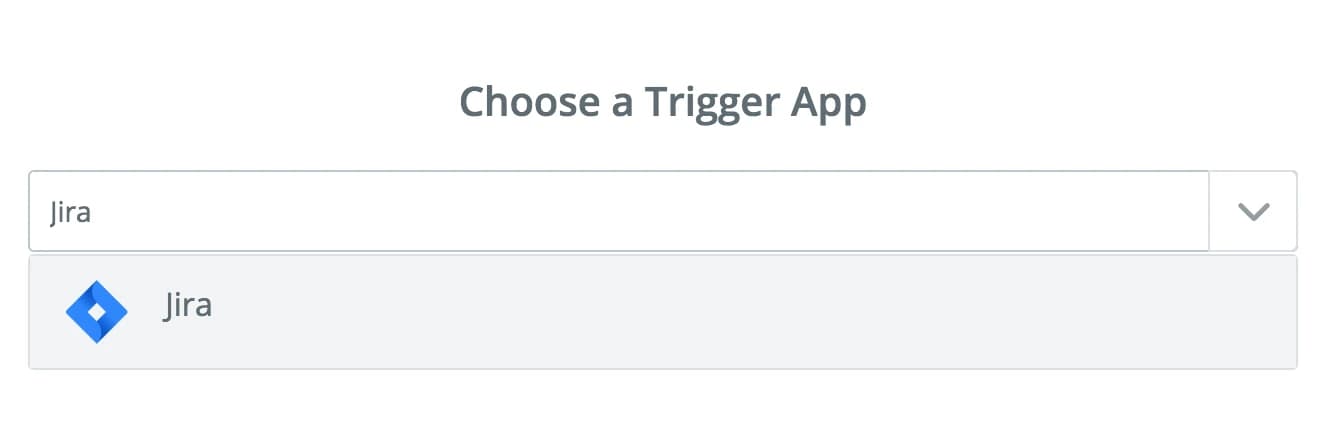
- Select the "New Issue" jira trigger

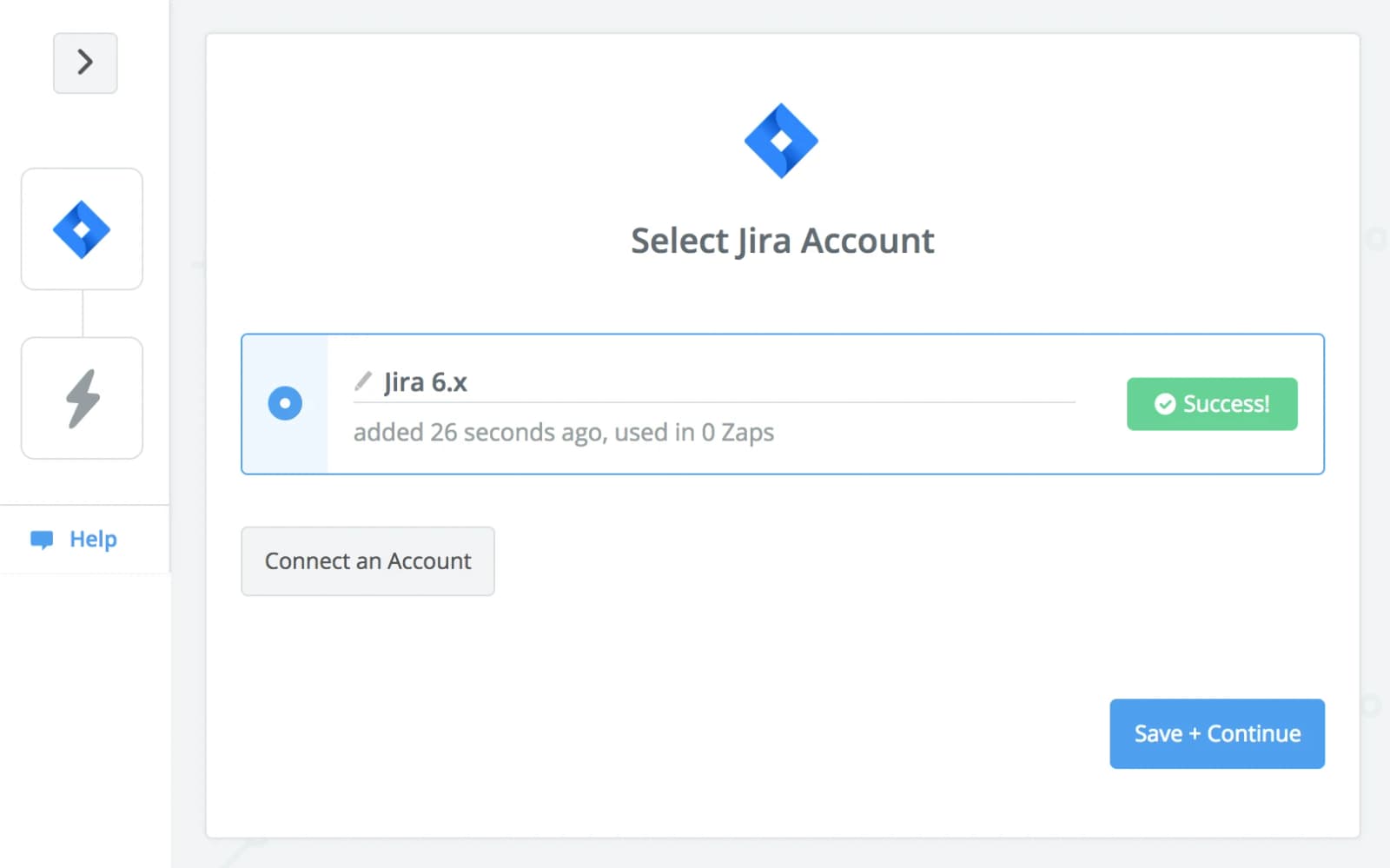
- Connect with Jira

- Enter Jira credentials
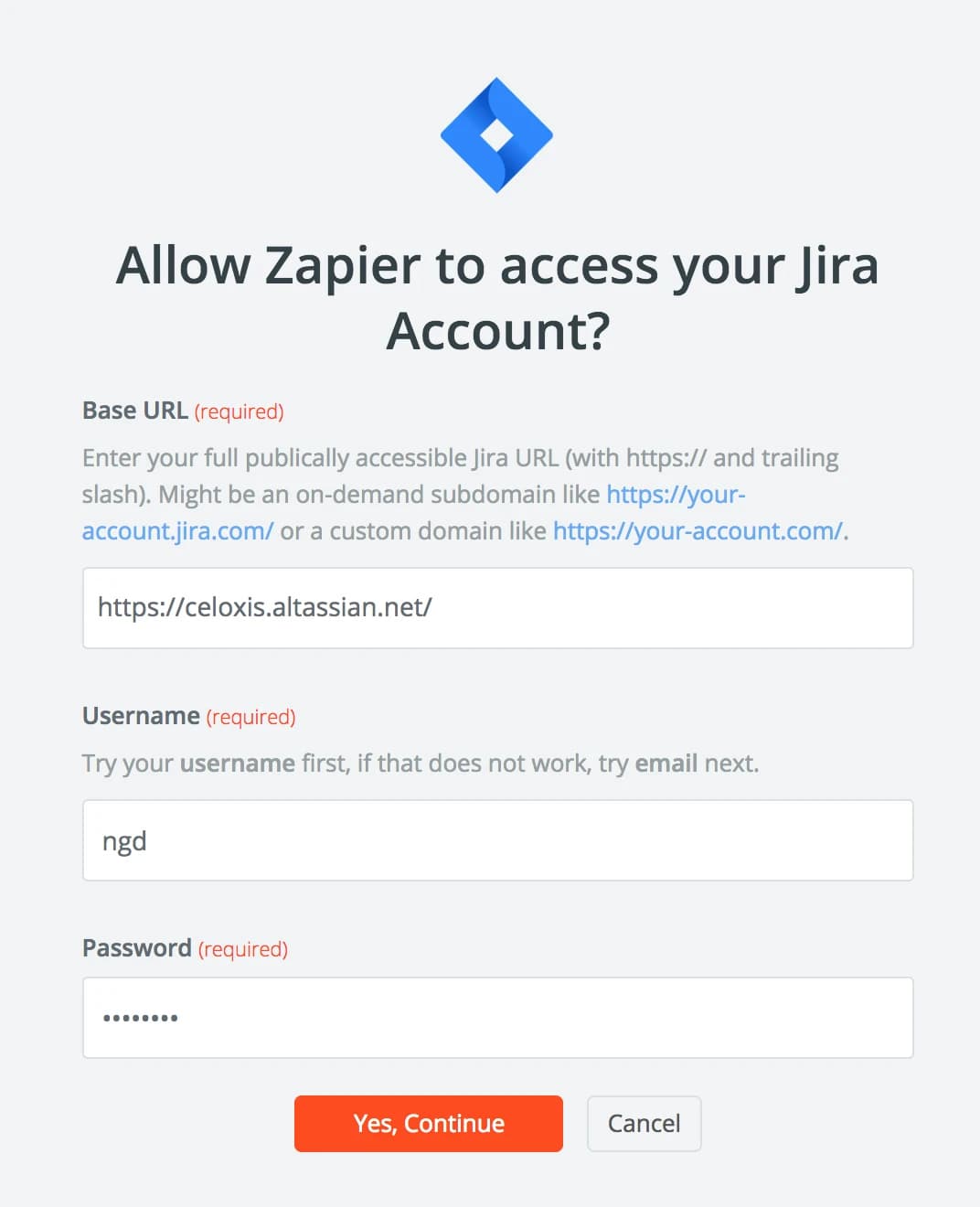
- Test your newly added connection
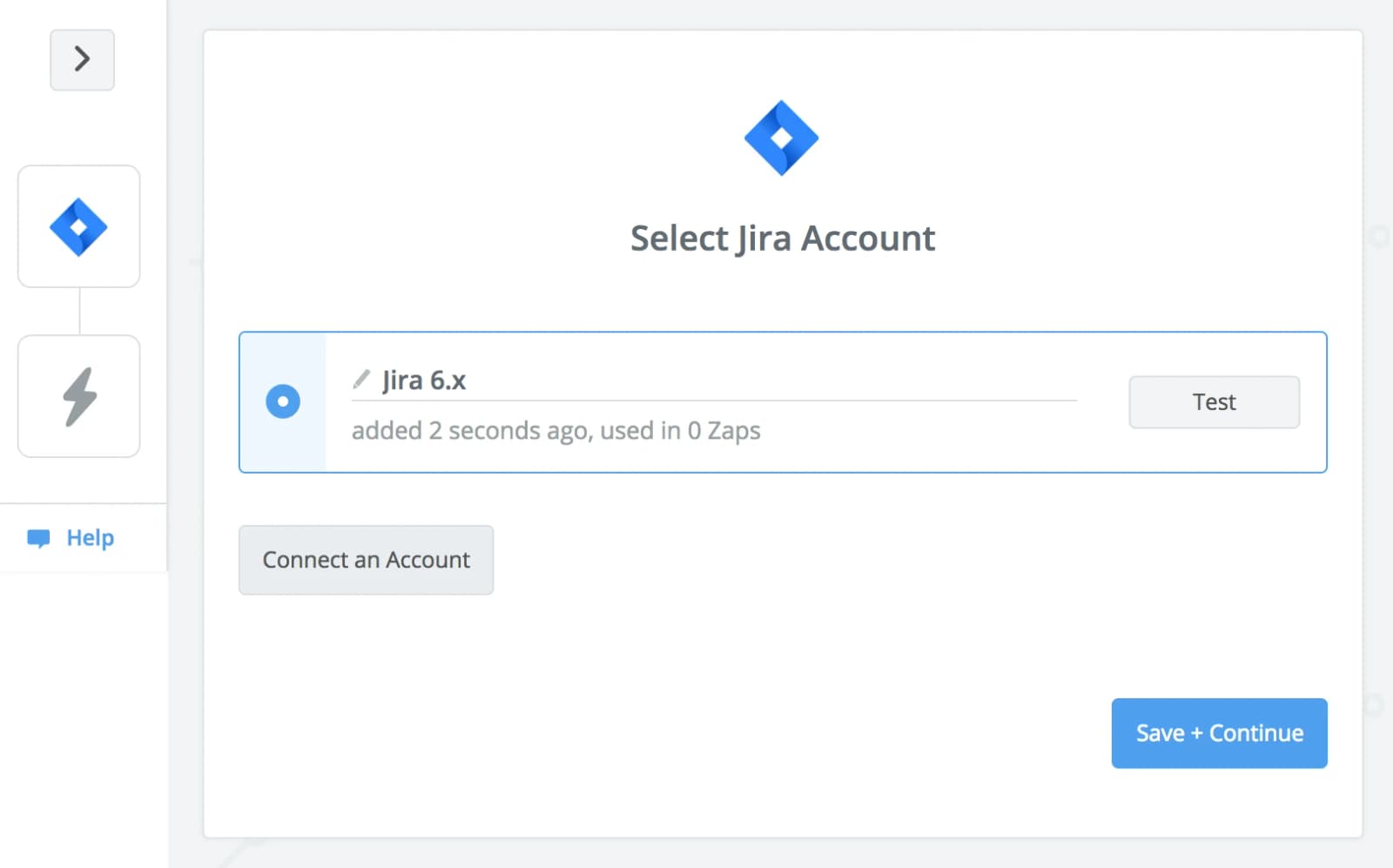
- You connection is valid
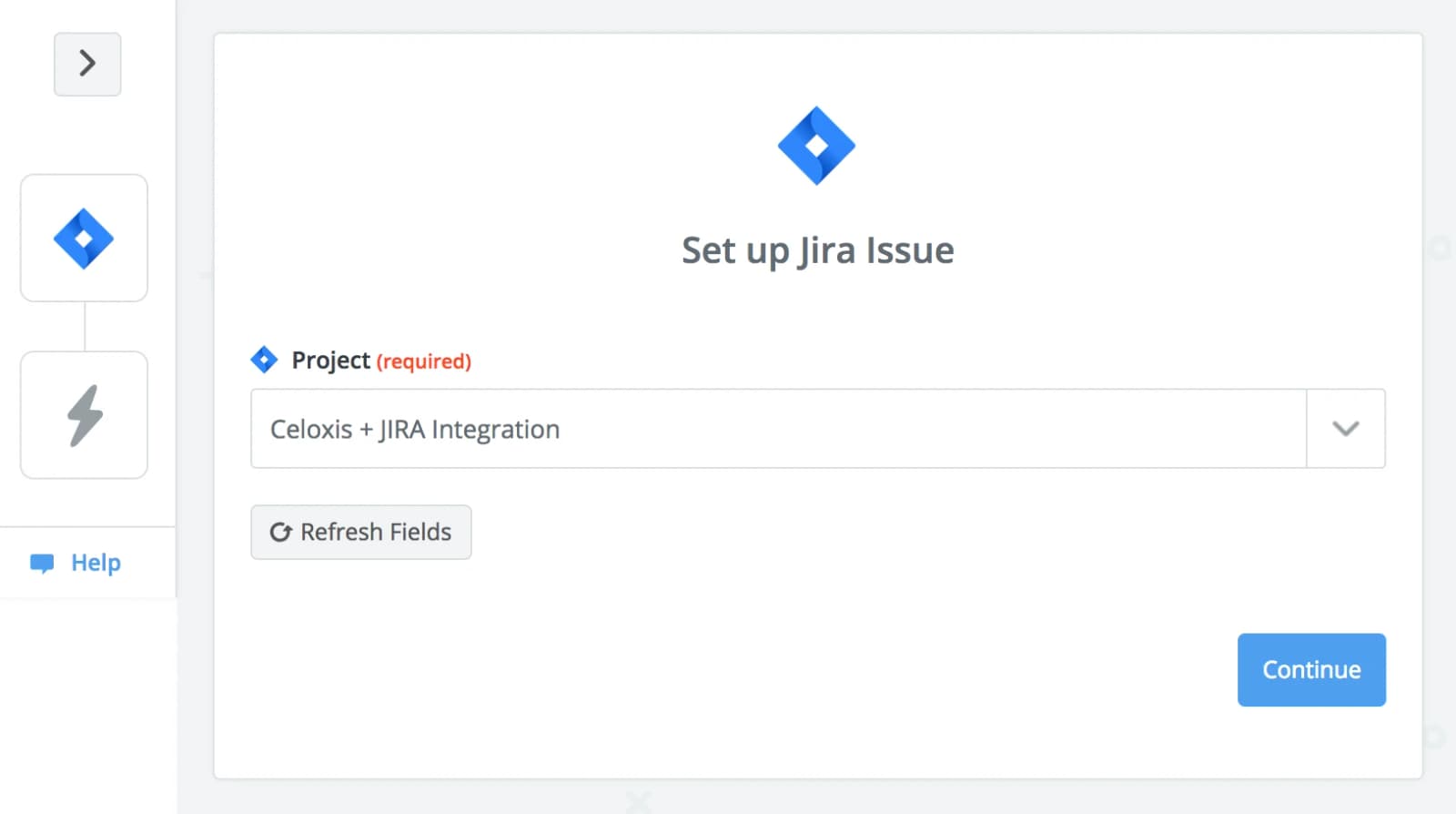
- Select a Jira project
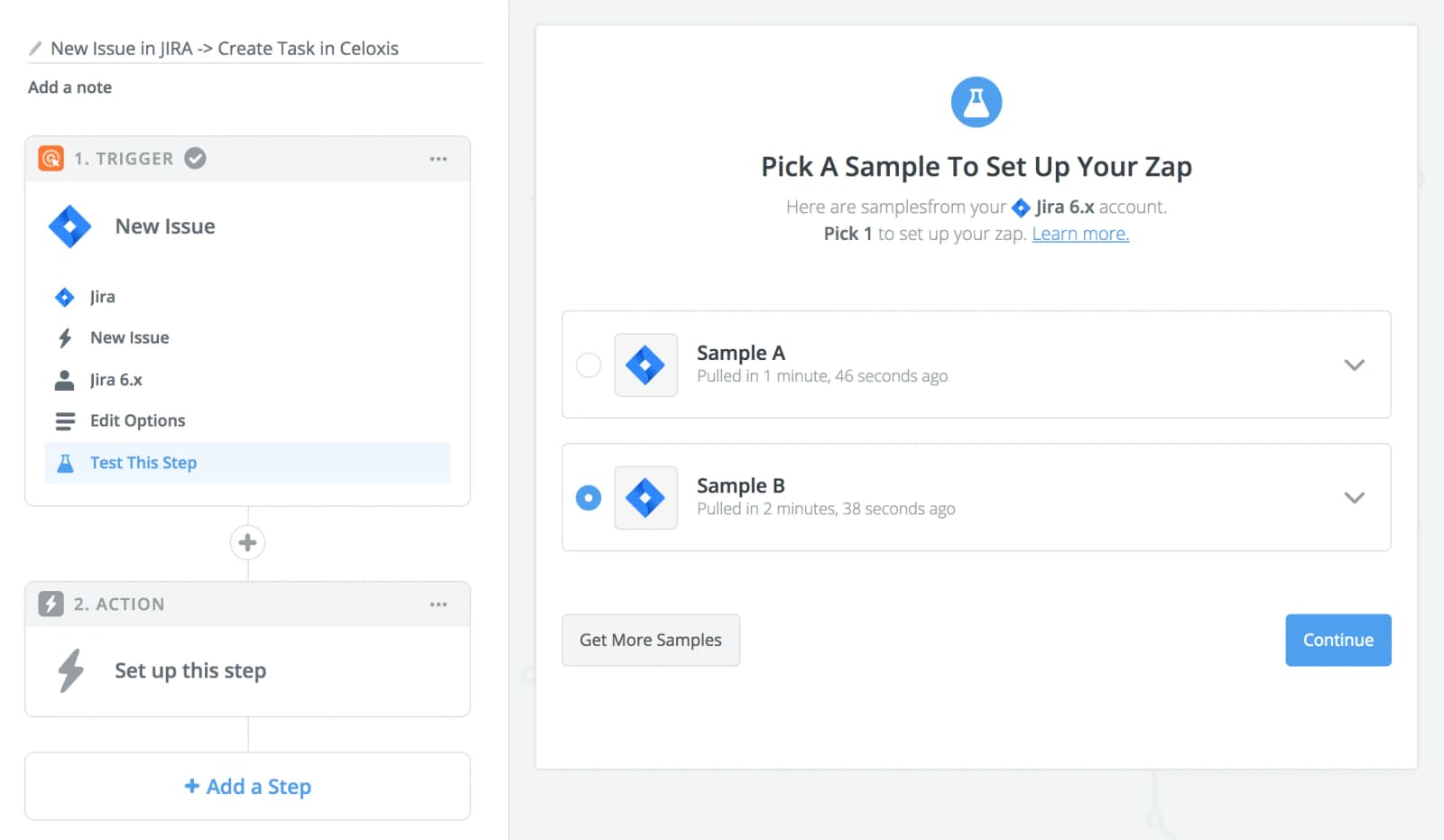
- Pick a Jira sample
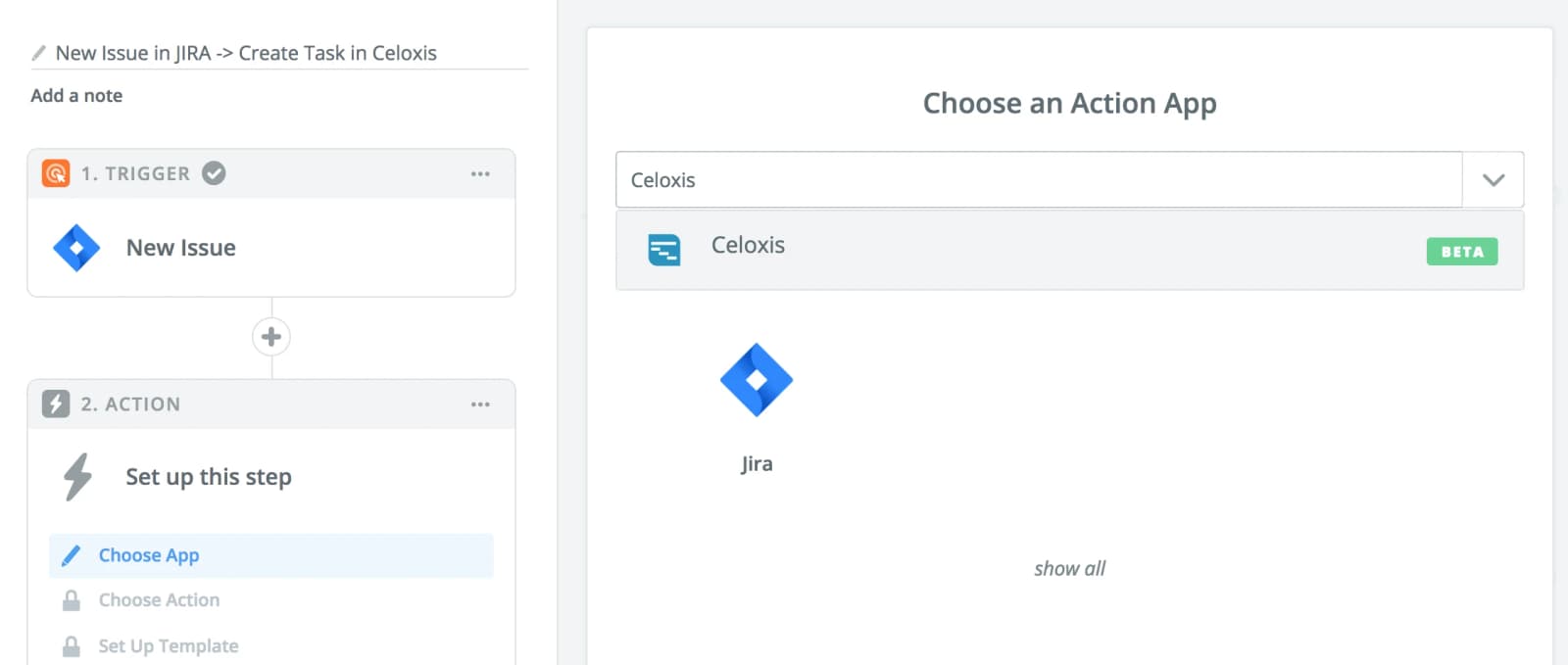
- Choose Celoxis as the action app
- Select the "Create Task" action

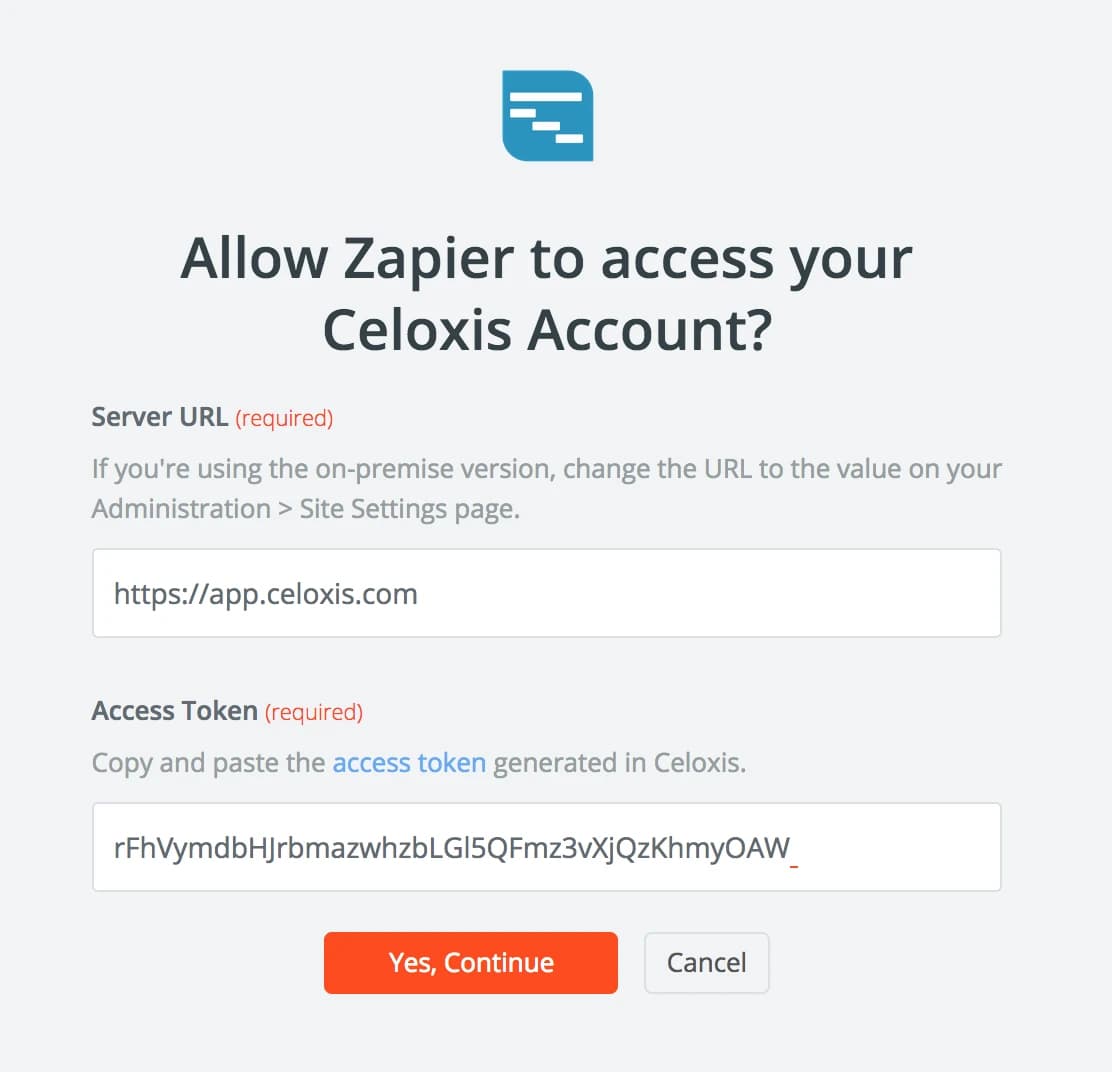
- Connect with Celoxis

- Enter your connection details
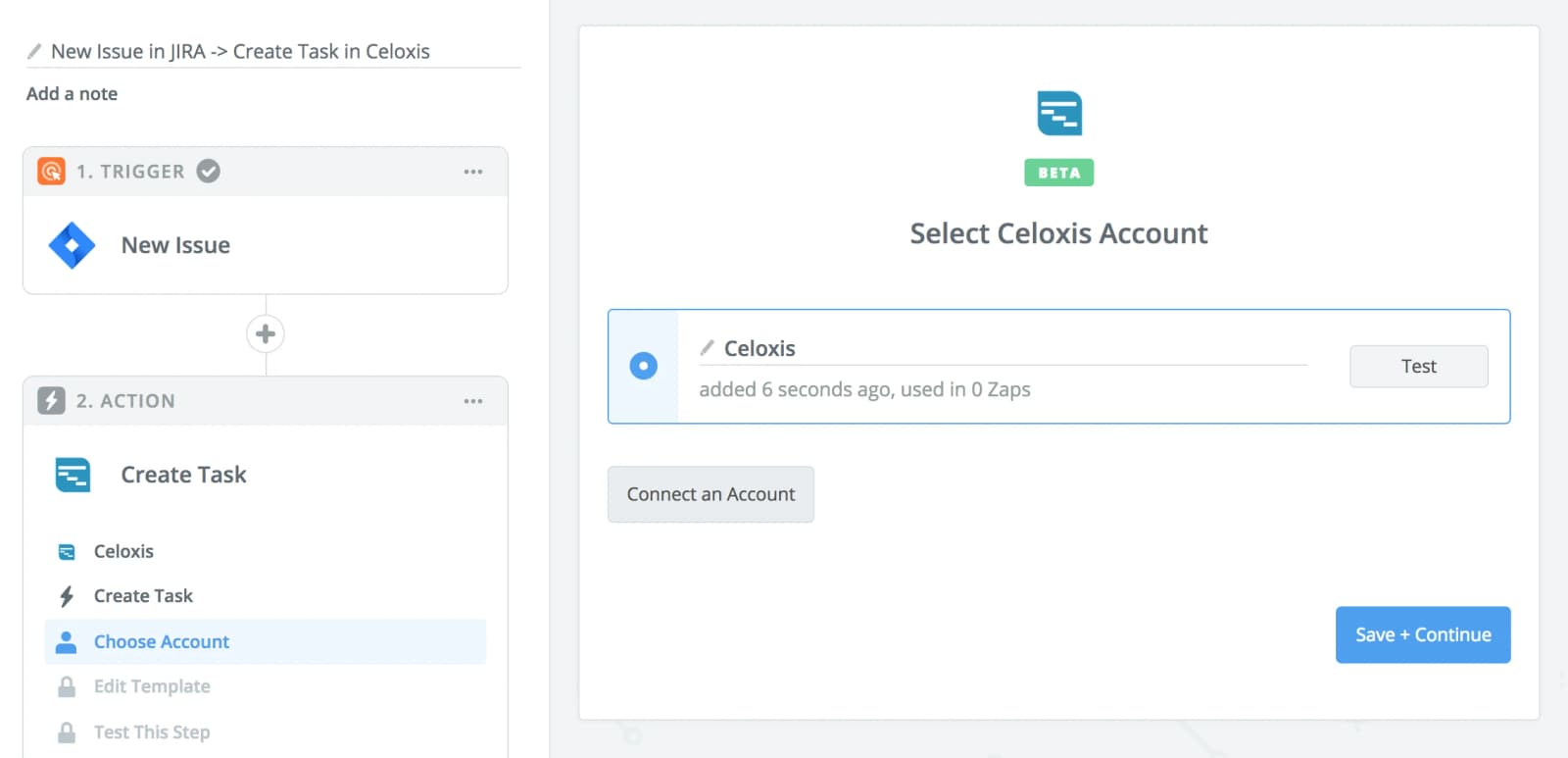
- Test the newly added connection
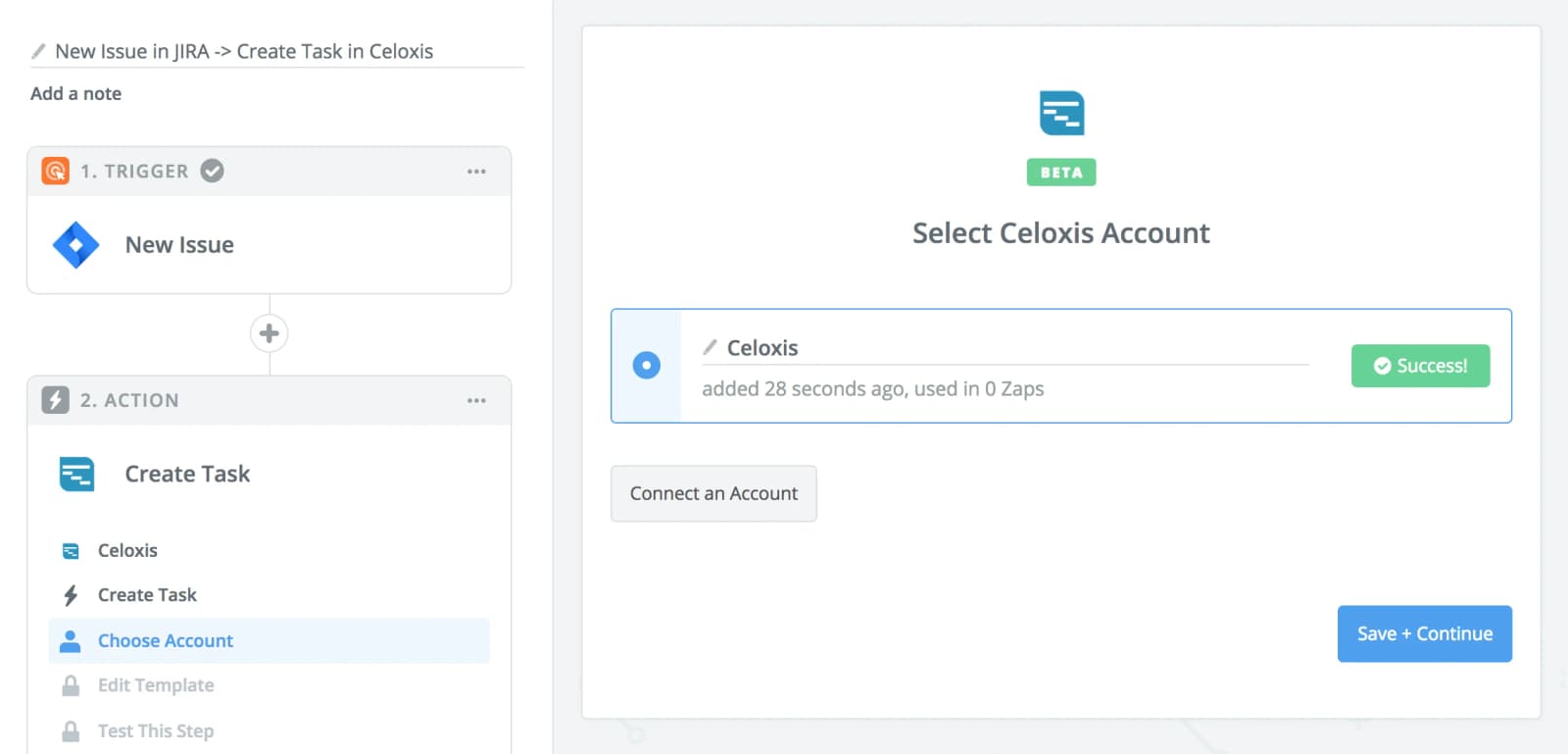
- Your connection is valid
- Map Jira fields to Task fields

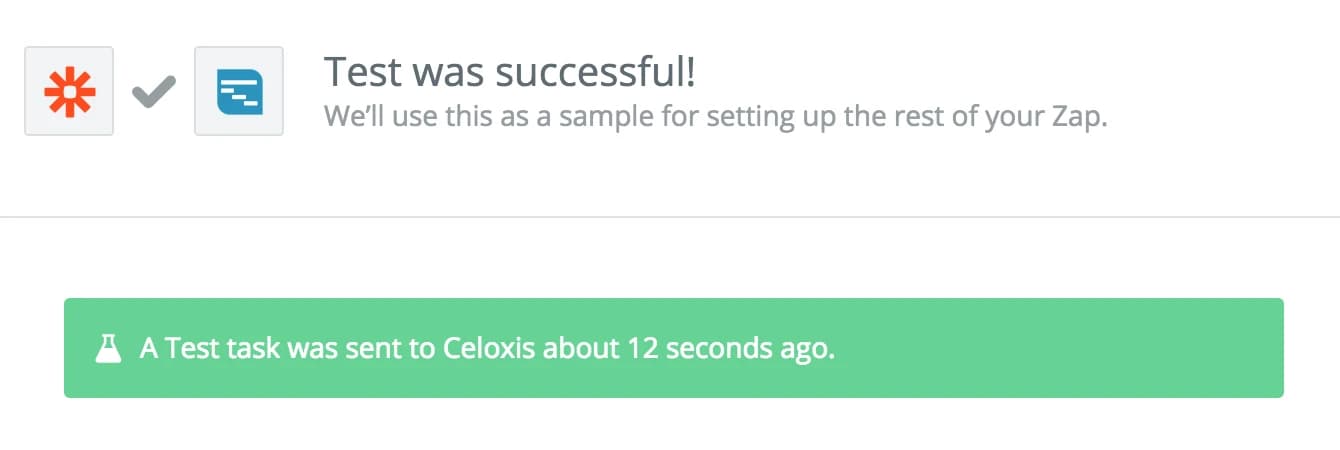
- Test this Zap
- Turn this Zap on

After you turn the Zap on, if issues are created in Jira in the project you selected, tasks will automatically be created in Celoxis based on the fields mapped above after
depending on your plan with Zapier.
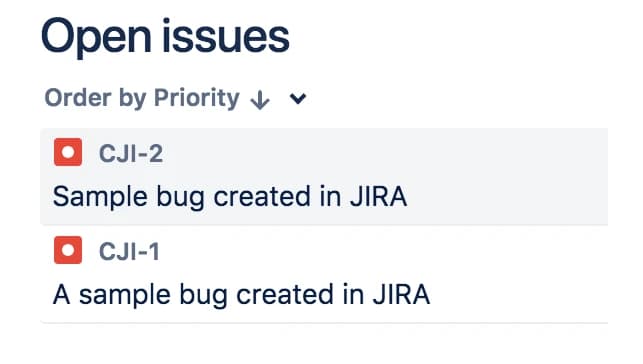
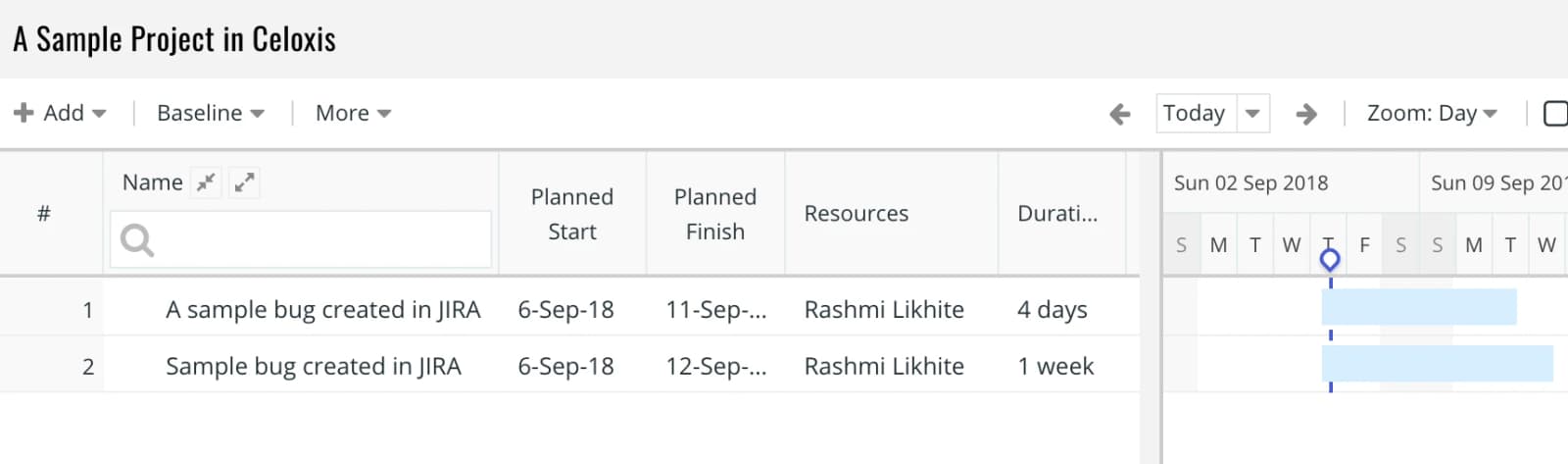
Zap #2 - Issue updated in Jira → Update task in Celoxis
- Make a Zap
- Select Jira as the trigger app

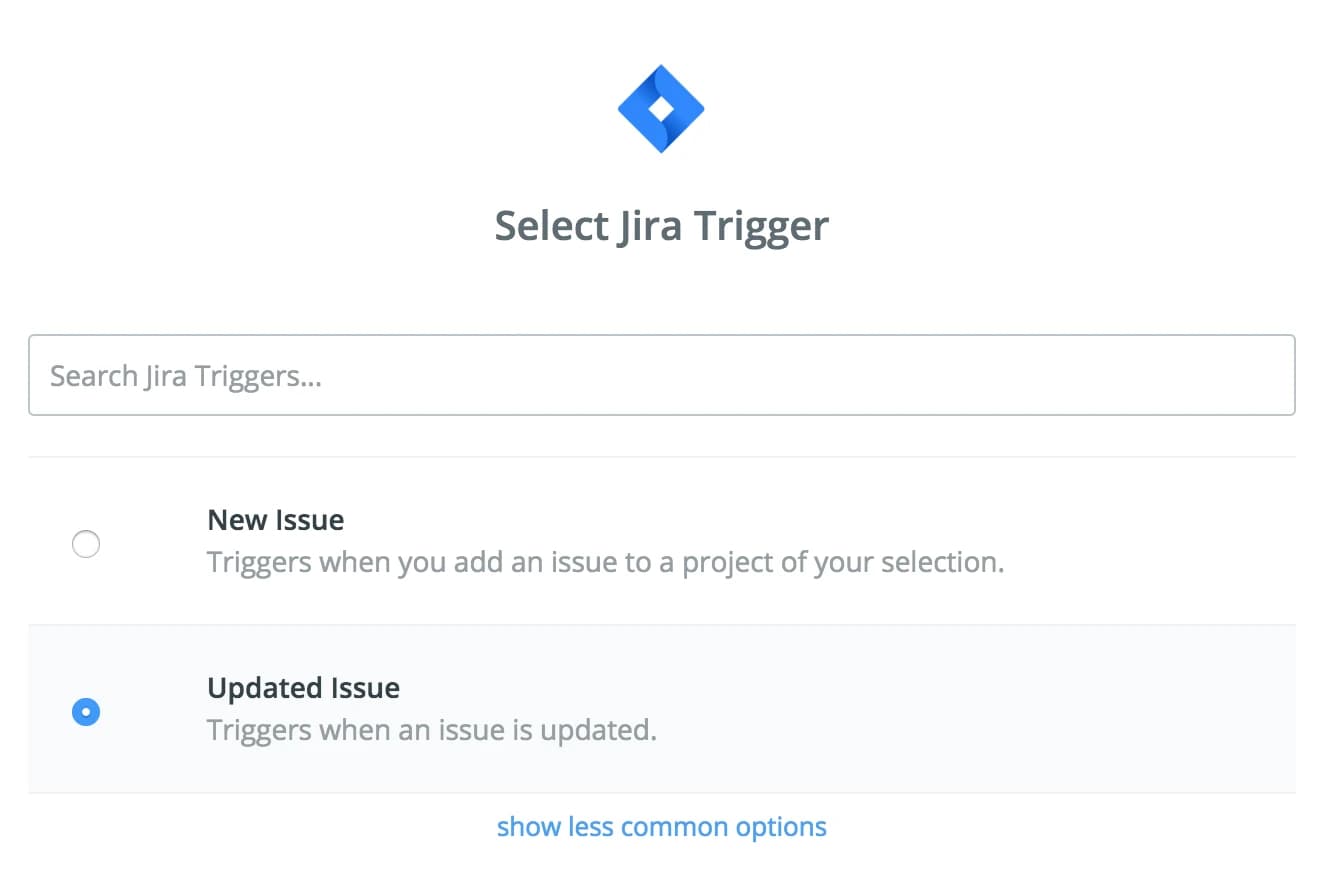
- Select the "Updated Issue" Jira trigger
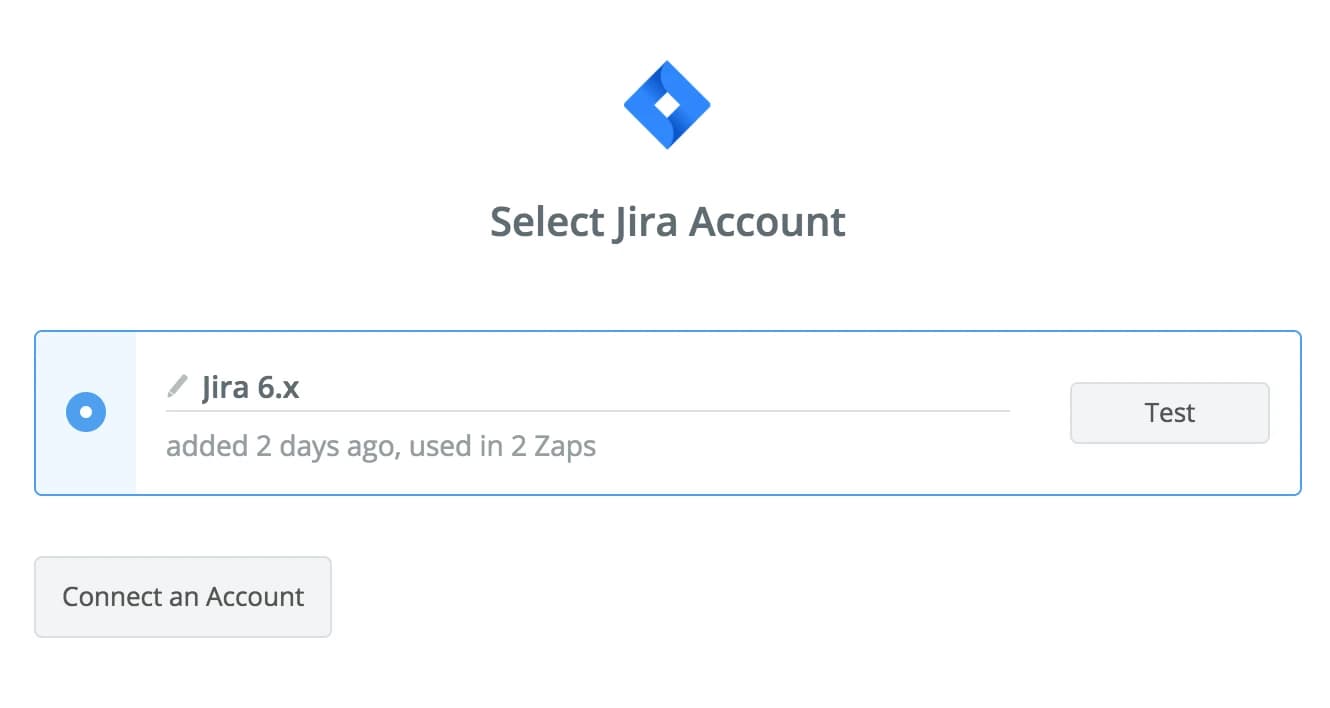
- Select Jira account
- Select Jira project
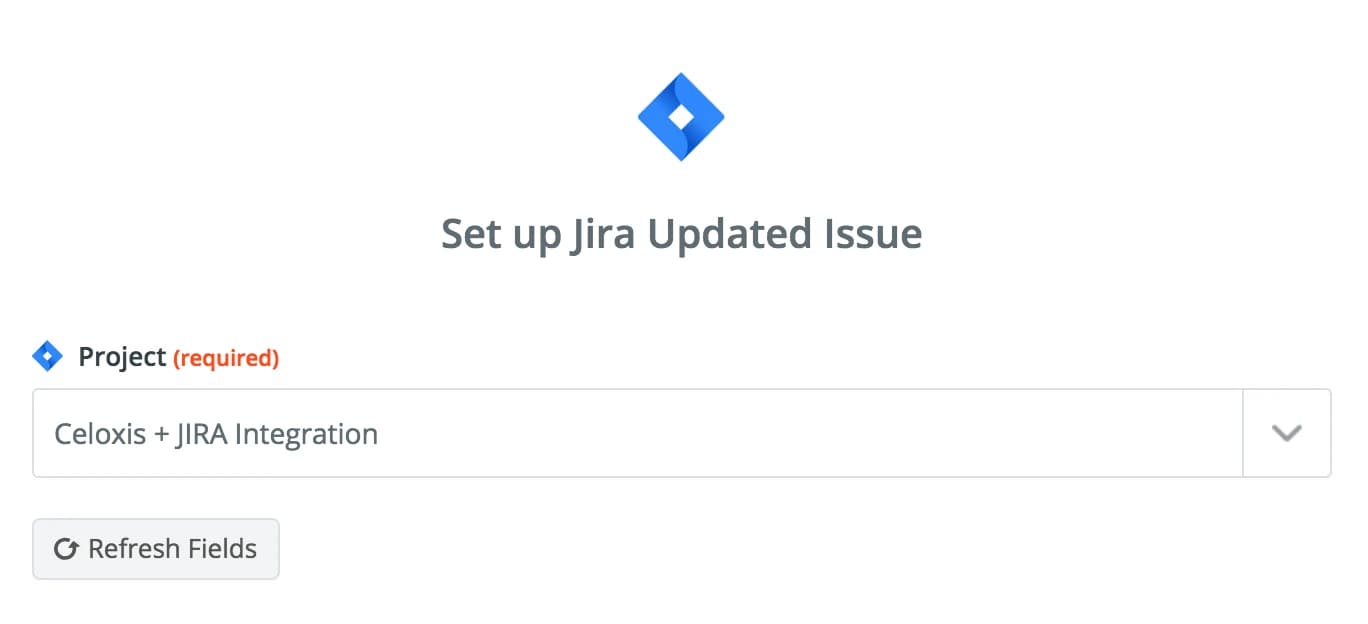
- Select Jira sample
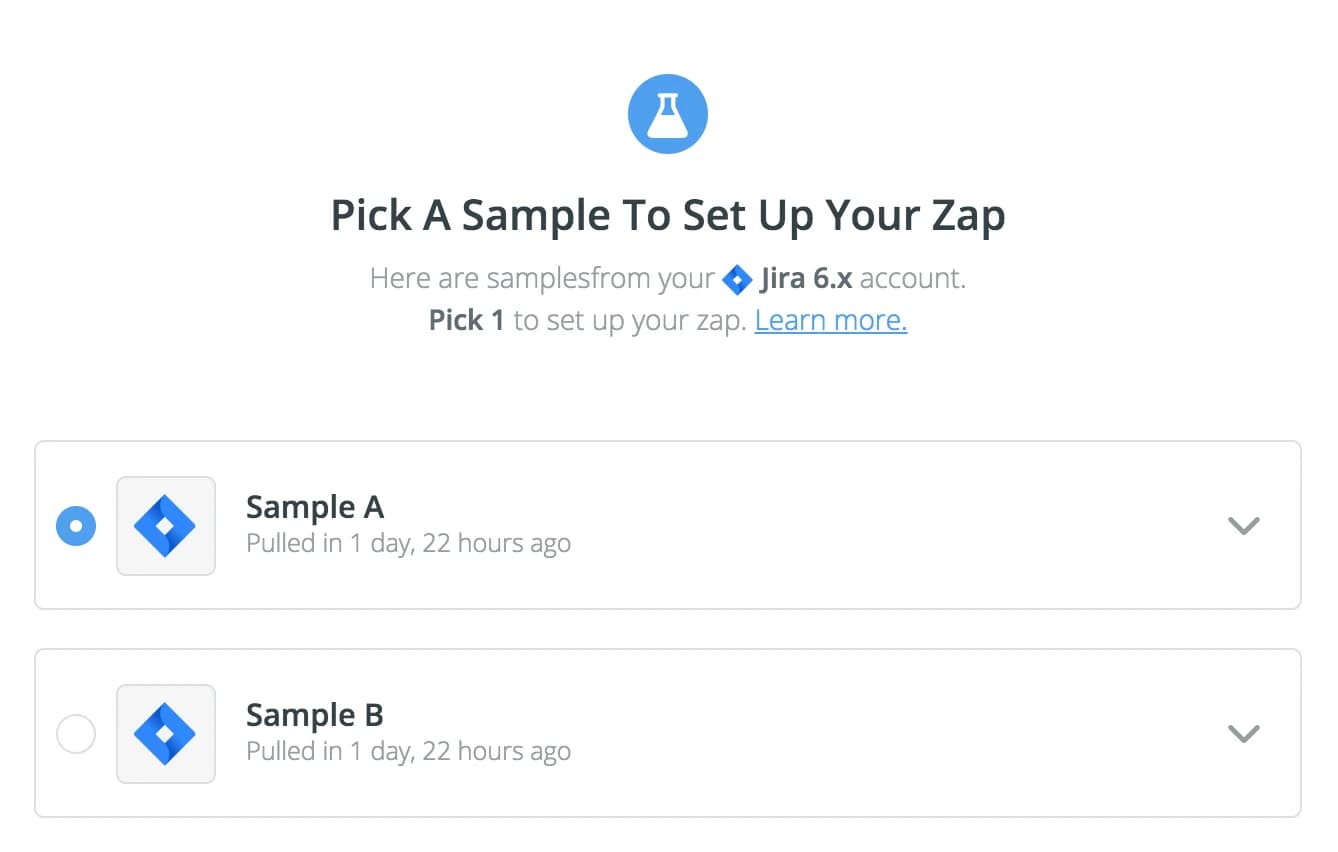
- Select Celoxis as the action app

- Select the "Find Task" action

- Select Celoxis account

- Use External Key

- Test the Find Task action
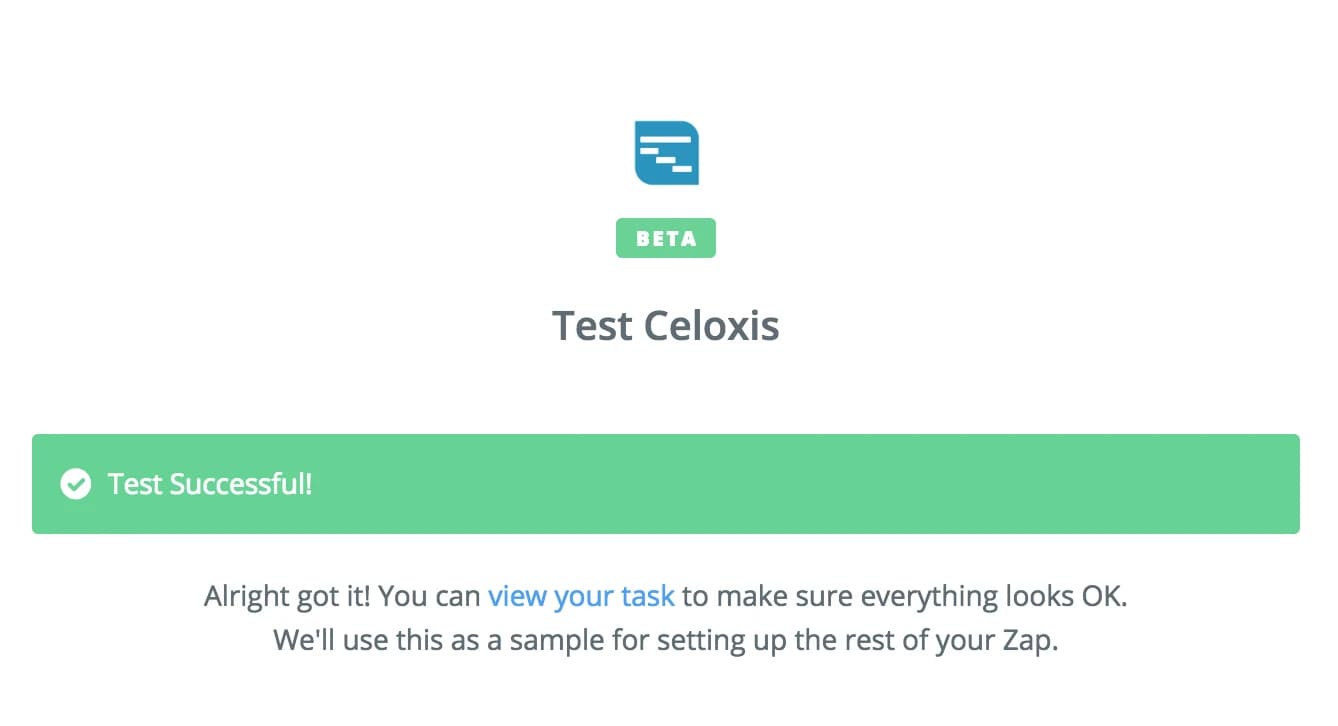
- Select Celoxis action app

- Select the "Update Task" action
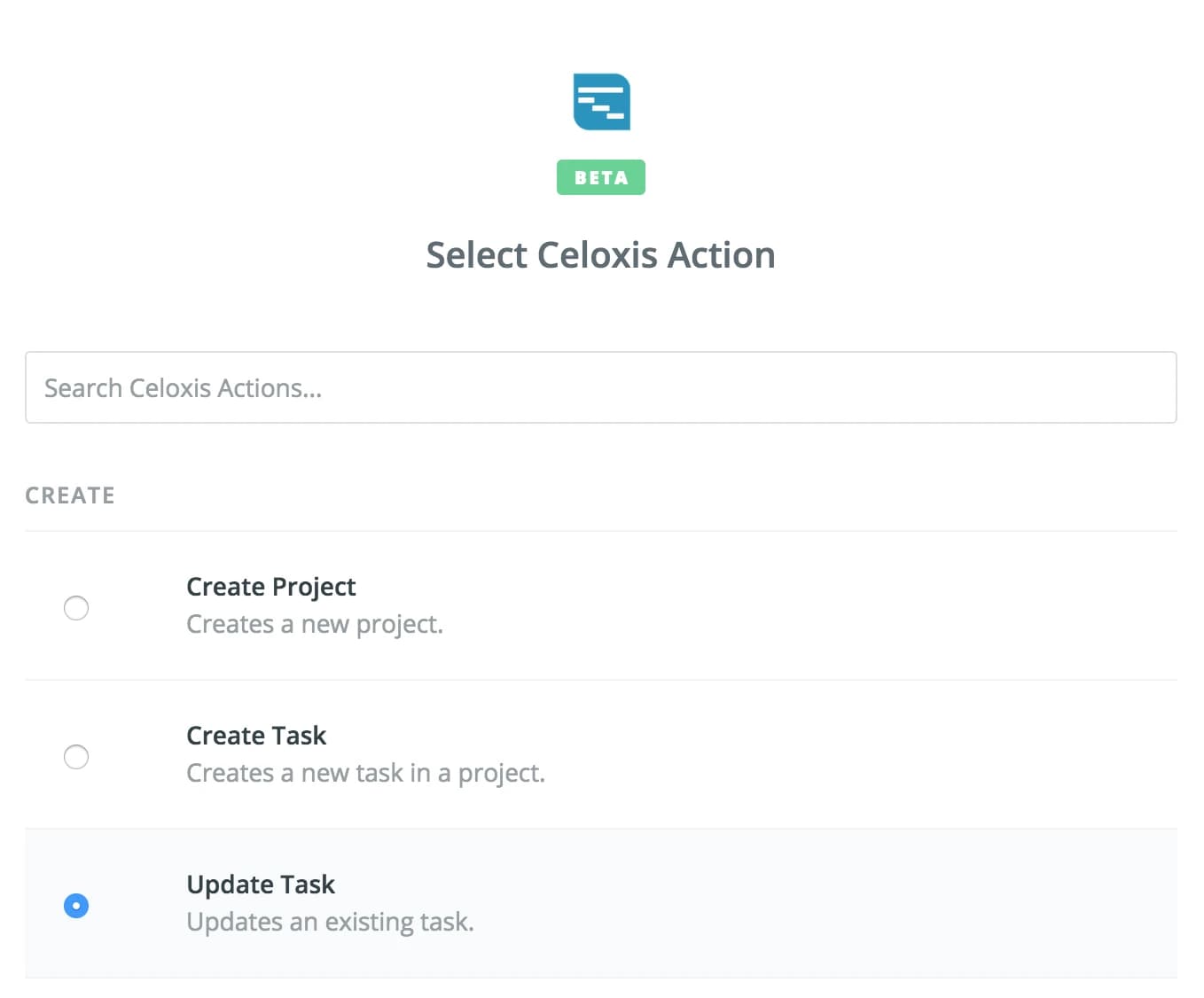
- Select Celoxis account

- Map Fields

- Test the Zap
- Turn the Zap on

Now after an issue has been updated in the project selected in the above Zap, the corresponding task will be updated in Celoxis based on the fields mapped above after
depending on your plan with Zapier.