Formula Fields
A formula custom field's value is automatically calculated by Celoxis based on its formula. The value is calculated every time the field is rendered. The formula expression language is sophisticated so you can perform complex data manipulations including arithmetic, string and date transformations.
Syntax
Celoxis treats anything between
and
as expressions. Formulas can be either defined as pure expressions e.g.
, or contain a mix of text and expressions as
when anything enclosed in
and
is treated as an expression and evaluated, while everything outside it is copied to the output verbatim as is. For the curious, if the formulae were attached to a project whose name was
and budget was
the output would be
and
respectively.
The dot operator
The dot operator is used to reference a property of an object. In the example
, the
refers to the project's budget if the custom field is attached to a project. The dot operator can also be used to call a function (a.k.a. method) of an object. In the example
, the
is a function call that would transform the project's name to upper case characters.
Operators
- Arithmetic:
+,-(binary),*,/anddiv,%andmod,-(unary) - String Concatenation:
+= - Logical:
and,&&,or,||,not,! - Relational:
==,eq,!=,ne,<,lt,>,gt,<=,ge,>=,le. Comparisons can be made against other values or against Boolean, string, integer, or floating-point literals. - Empty: The
emptyoperator is a prefix operation that can be used to determine whether a value isnullor empty. - Conditional:
A ? B : C. EvaluateBorC, depending on the result of the evaluation ofA. - Assignment:
= - Semicolon:
;
The precedence of operators highest to lowest, left to right is as follows:
[] .()(used to change the precedence of operators)-(unary)not ! empty* / div % mod+ -(binary)+=< > <= >= lt gt le ge== != eq ne&& and|| or? :=;
Reserved Words
The following words are reserved for the EL and should not be used as identifiers:
and | or | not | eq |
ne | lt | gt | le |
ge | true | false | null |
instanceof | empty | div | mod |
Basic Examples
| Formula | Result |
|---|---|
${1 > (4/2)} | false |
${4.0 >= 3} | true |
${100.0 == 100} | true |
${(10*10) ne 100} | false |
${'a' < 'b'} | true |
${'hip' gt 'hit'} | false |
${4 > 3} | true |
${1.2E4 + 1.4} | 12001.4 |
${3 div 4} | 0.75 |
${10 mod 4} | 2 |
${!empty me.code} | False if the object's code is null or an empty string. |
Utility Functions
The following set of helper functions have been provided:
formatDate(date) | The formatted value of date (without the time) as per viewer's preferences. |
formatDateTime(datetime) | The formatted value of date and time as per viewer's preferences. |
formatNumber(number) | The formatted value of the number as per the viewer's locale. |
formatCurrency(number) | The formatted value of currency as per the currency specified in the company's preferences and number format as per the viewer's locale. E.g. $25,000 |
hoursToHHMM(number) | Formats the hours in the form HH:MM. For example, 2.5 will result in 2:30 |
ceil(number) | The nearest integer larger than the input. For example ${ceil(5.3)} will return 6 |
floor(number) | The nearest integer smaller than the input. For example ${floor(4.8)} will return 4 |
abs(number) | The absolute value of a number. For example ${abs(-3.2)} will return 3.2 |
round(number) | The rounded value of input. For example ${round(3.6)} will return 4 |
roundTo(digits, number) | The rounded value of input number to the number of digits specified. For example ${roundTo(2, 3.667)} will return 3.67; while ${roundTo(0, 3.667)} will return 4. |
String.contains(haystack, needle) | Check if needle exists in haystack |
String.endsWith(string, suffix) | Check if string ends with suffix |
String.replace(txt, search, replace) | Replaces all occurences of search in txt with replace |
String.startsWith(string, prefix) | Check if string starts with prefix |
String.trim(string) | Trims whitespace and control characters from the ends of the string |
String.blankIfNull(str) | If str is null, returns a blank string else returns the str itself. |
Date.before(date1, date2) | Returns true if date1 is before date2. |
Date.equal(date1, date2) | Returns true if date1 equals date2. |
Date.after(date1, date2) | Returns true if date1 is after date2. |
Date.format(date, format) | The formatted value of the date as per the format. For supported formats see this. |
Date.hoursBetween(from, to) | Return the number of elapsed hours between from and to. |
Date.workingHoursBetween(from, to) | Return the number of working hours between from and to based on the company's default work calendar. If the elapsed days between from and to is more than 30, the elapsed hours is returned. |
Date.plusHours(date, hours) | Adds hours to date and returns that date. |
Date.isoToDate(string) | Converts string in ISO format to a date. |
Date.now() | Returns a date representing the current date and time |
Collection.size(v) | Returns size of v. |
Collection.contains(haystack, needle) | Check if needle exists in haystack |
Collection.containsAny(haystack, needles) | Check if at least one needle exists in the haystack |
Collection.containsAll(haystack, needles) | Check if all needles exists in the haystack |
Writing multi-line formulas
To write the formula code on multiple line, use the = and ; operators. The return value is the last statement of the formula. For example:
${
apc = me.actualPercentComplete;
ppc = me.plannedPercentComplete;
(apc - ppc)/ppc
}The formula return data type
While defining a formula, you have to select a Formula Data Type. This tells the system what it should expect the formula to return. Celoxis formats the return value automatically based on the data type. For example, if you indicate the return type to be a currency, then if your formula returns a number 10000, the output would be $10,000 i.e. Celoxis automatically formats the number and prefixed it with the company's currency symbol.
The me object
The me object in formula represents the object for which the formula is being evaluated. E.g. let's say that our formula field Client Advance is defined as ${me.budget * 0.1} i.e it represents 10% of the budget. If we have attached this field to both projects and tasks, then while evaluating the formula for a project, the me object would be a project while for a task it would be a task object.
Field reference
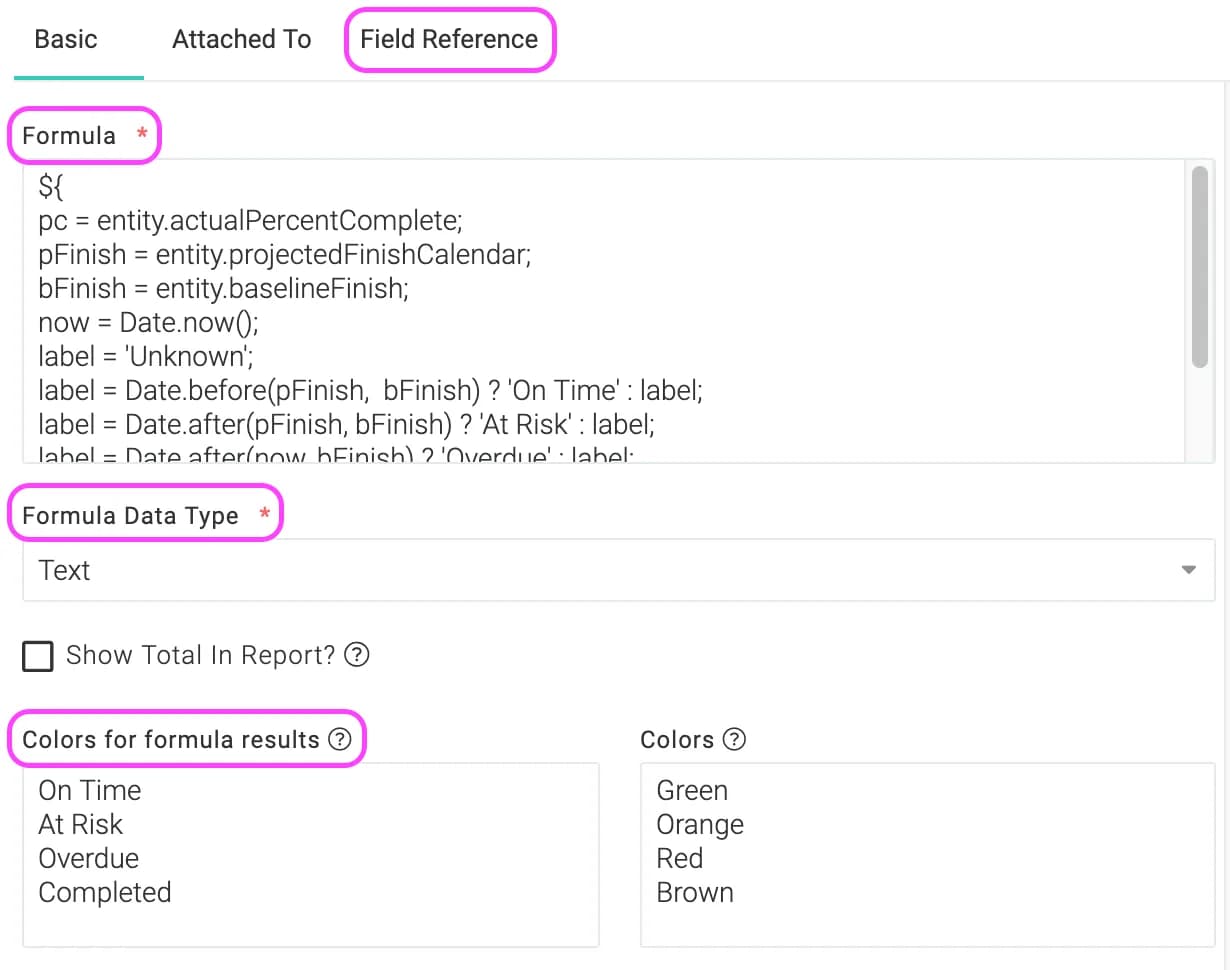
To view the list of available fields, click on the Field Reference tab on the add/edit custom field screen. Click on the plus icon to expand the list of available variables for the various entities.
Error handling
When there is an error evaluating a formula, e.g. you passed a number where a string was expected, the output would show ERR!. Move your mouse over it to get a better description of the problem.
Examples
Assume that we have a project with the following data.
| Label | Field | Value |
|---|---|---|
| ID | id | 1234 |
| Name | name | Setting up office space |
| Start | startCalendar | 10 January, 2011 |
| Budget | budget | 5000 |
| Estimated Cost | estimatedCost | 4000 |
| Actual Cost | actualCost | 3800 |
We'll now look at a few simple examples. We shall assume that the formula is attached to projects and the sample output is for the project described above.
| Formula | Output | Comments |
|---|---|---|
${me.id * 10} | 12340 | id is multiplied by 10 |
me.id * 10 | me.id * 10 | Not enclosed in ${} and hence copied to the output verbatim. |
ID:${me.id} | ID:1234 | Text mixed with an expression |
${me.name + 100} | ERR! | Cannot perform arithmetic on String type. |
${me.abcd} | ERR! | me does not have a property named abcd. |
${formatDate(me.startCalendar)} | Jan 10, 2011 | Formats the start date as per the user's date format style. |
${me.actualCost gt (me.budget*.9) ? 'ALERT' : 'OK'} | ALERT | An example on how to write if/then/else |
${formatCurrency(me.budget)} | $ 5,000 | Assuming your currency symbol is $ |
${round(((me.budget - me.actualCost)*100)/me.budget)}% | 24% | Calculates the % of budget remaining |
Advanced Example: Your own schedule health indicator
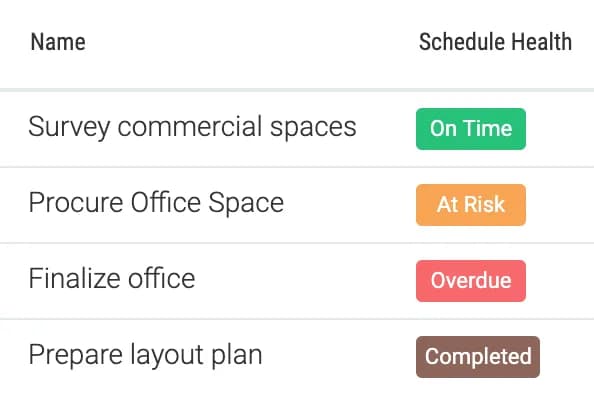
Let's say that you want to have a schedule health indicator that is based on baselines i.e. the date you actually promised to the customer rather than on the current plan's finish date.
You will create a formula field, attach it to projects, set it's output data type to Text and enter the formula as:
${
pc = me.actualPercentComplete;
pFinish = me.projectedFinishCalendar;
bFinish = me.baselineFinish;
now = Date.now();
label = 'Unknown';
label = Date.before(pFinish,  bFinish) ? 'On Time' : label;
label = Date.after(pFinish, bFinish) ? 'At Risk' : label;
label = Date.after(now, bFinish) ? 'Overdue' : label;
label = pc == 100 ? 'Completed' : label;
label
}
In the Color part of the formula put the mappings as:
| Result | Color |
|---|---|
On Time | Green |
At Risk | Orange |
Overdue | Red |
Completed | Brown |